
Customizing storefront text
Instant Art Kit uses Shopify’s Translate & Adapt app to manage all customer-facing text. This allows you to customize the default text, translate it into multiple languages, and ensure your storefront matches your brand voice.
Accessing Translate & Adapt
Step 1: Open Instant Art Kit settings
- Log in to your Instant Art Kit dashboard
- Navigate to Settings in the main menu
- Look for the translations section
Step 2: Launch Translate & Adapt
Click the Translate & Adapt button in the settings page.
First time using Translate & Adapt?
If Shopify’s Translate & Adapt app is not yet installed on your store, you’ll be redirected to the Shopify App Store page where you can install it. This is a free app provided by Shopify.
After installation, return to Instant Art Kit settings and click the button again to access your translations.
Customizing text
Once in Translate & Adapt, you can customize all Instant Art Kit text that appears on your storefront.
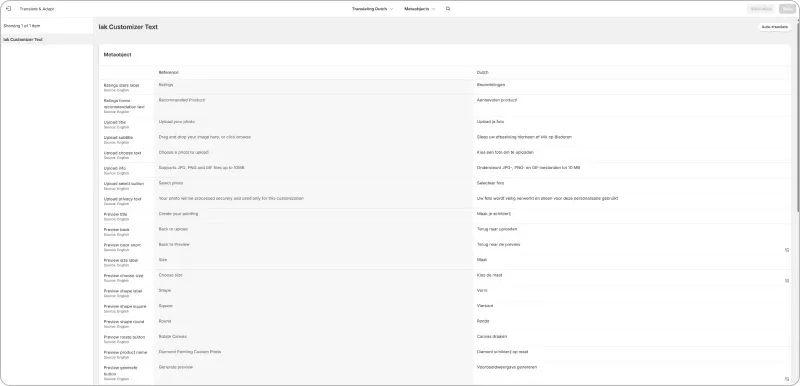 Overview of Instant Art Kit in Translate & Adapt
Changing default text
- Select your store’s default language
- Edit any text field to match your preferred wording
- Save your changes
Examples of customizable text
- Upload button labels
- Modal titles and descriptions
- Progress messages
- Error messages
- Confirmation text
Translating to other languages
If your store supports multiple languages, you can translate all Instant Art Kit text:
Step 1: Select a target language
In Translate & Adapt, use the language and market selector at the top middle of the screen to choose the language you want to translate to.
Step 2: Add translations
For each text field, enter the translated version in your target language.
Step 3: Use auto-translate (optional)
Shopify’s Translate & Adapt includes an auto-translate feature that can automatically translate text for you:
- Click the auto-translate option
- Review the suggested translations
- Edit any translations that need adjustment
- Save your changes
Pro tip
While auto-translate is convenient, we recommend reviewing the translations to ensure they match your brand voice and are accurate for your specific industry terminology.
New features and translations
When new features are added to Instant Art Kit, any new customer-facing text will automatically appear in Translate & Adapt. You’ll be able to:
- Customize the default text in your primary language
- Translate the new text to all your supported languages
- Use auto-translate for quick translations
This ensures your storefront always stays consistent, even as new functionality is added.
Best practices
Keep it consistent
- Use the same tone across all text
- Match the style of your existing store copy
- Consider your target audience when choosing wording
Test your translations
- Preview your product pages after making changes
- Go through the full customer flow to see all text in context
- Ask native speakers to review translations when possible
Regular reviews
- Check translations periodically for accuracy
- Update text when you rebrand or change messaging
- Review new feature text as it becomes available
Troubleshooting
Text not updating on storefront
If your changes don’t appear immediately:
- Clear your browser cache
- Try viewing the page in an incognito/private window
- Wait a few minutes for Shopify’s cache to update
- Check that you saved your changes in Translate & Adapt
Can’t find Instant Art Kit in Translate & Adapt
If you don’t see Instant Art Kit text in the app:
- Make sure you have at least one product mapped in Instant Art Kit
- Add the Instant Art Kit block to your theme
- Try refreshing the Translate & Adapt page
- Contact support if the issue persists